

How to make a Vox-style documentary in Canva
This is the video that started it all on Lilly’s Tech Tips. You’ll rebuild five signature Vox moves inside Canva: the animated title card, map zooms with Match & Move, hand-drawn map highlights, the article highlight and the word-change effect. Then you’ll finish it with sound design that supports the story instead of fighting it.
Watch on YouTube · 14 min · 1.2M views
What you’ll learn
- Hide an element off-canvas so Match & Move can zoom into it
- Draw and reveal map highlights with the Draw tool and a slow Wipe
- Lift text out of a newspaper with Magic Grab and highlight it
- Build an animated line chart with the Charts app
- Create the Vox word-change effect with 0.1-second pages
- Layer subtle sound effects without drowning the voiceover
What you need
- Canva Pro
- A 16:9 video design (any size works)
- A high-resolution map image
- 15 to 20 article screenshots for the word-change effect
Step by step
Build the animated title card
Open the photos section, search Orthogonal Grid and stretch it to the full height of the canvas. Hold Alt and drag to duplicate it across the width, group both and set the transparency to 30%. Change the page background to a dark grey.
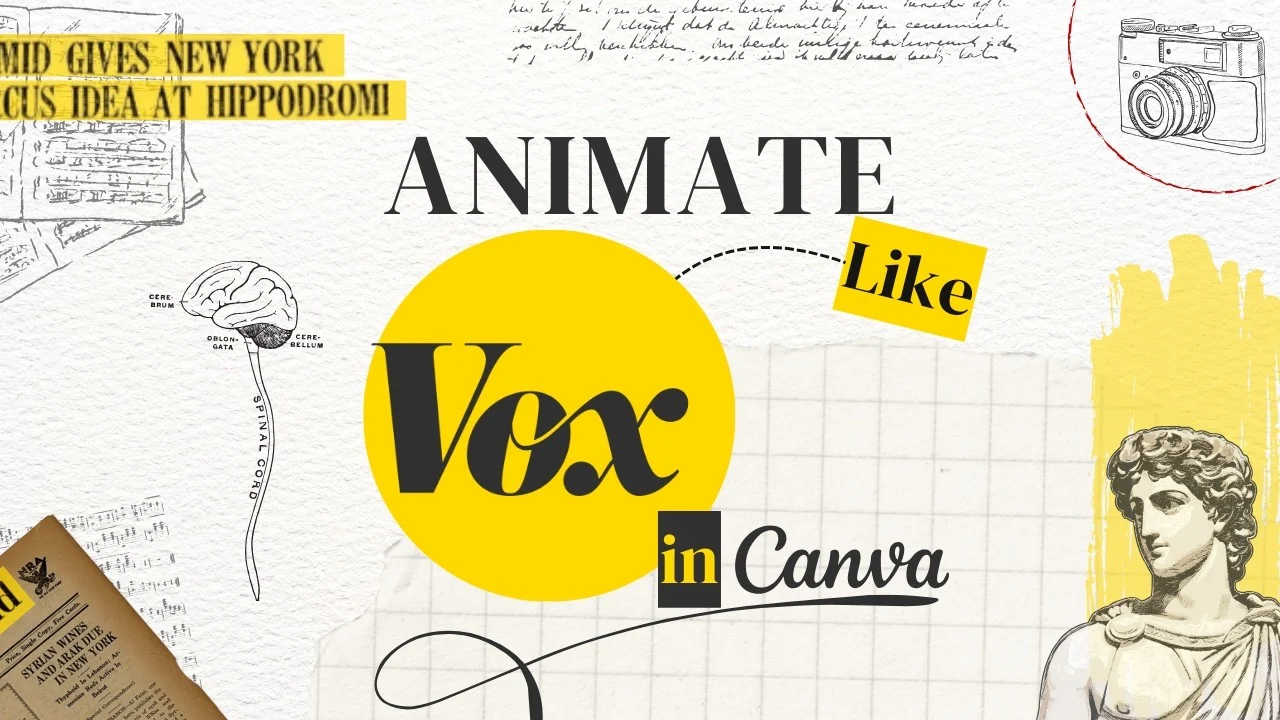
Add a heading in DM Serif Display, then copy it, darken it and give it a yellow Background text effect. Add a circle with your logo, a subheading and a Decorative thin line stroke underneath.
Connect the heading to the circle with a dashed line set to Curved. Put four vintage music sheet graphics in the corners in light grey.
Animate it: Scrapbook on the corner graphics (plus a Wiggle motion effect at the lowest intensity), Baseline on the headings with On enter selected, and a right-to-left Wipe on the curved line.
Hide the map off-canvas, then zoom with Match & Move
Duplicate the page, clear everything except the background and add a high-resolution map.
Here’s the trick: copy the map onto the first page, rotate it 145° and push it into the top-left corner so only a few pixels are visible. Nobody will notice it, but Canva now knows where it travels from.
Trim page one to about 3 seconds and add a Match & Move transition of 1 second. Duplicate page two, enlarge the map on your area of interest and add another Match & Move between them.
Draw the highlight with the marker pen
On a duplicate of the zoomed page, open the Draw tool, pick the marker in red and trace a border around the region you’re talking about.
Give the drawing a Wipe at the slowest speed with On enter selected, so it looks hand-drawn in real time.
To pan to another region, duplicate the page, select the map and the border together with Shift, move them, and add Match & Move between the pages.
Connect two points of interest
Place a red circle at 80% transparency with a Pop animation. Alt-drag a copy to the second location and give that one a Pulse motion effect.
Join them with a thick dashed curved line and a right-to-left Wipe. Right-click the line, choose Show timing and sequence it: first circle, then the line, then the second circle as the line reaches it.
Cut to the newspaper article
Duplicate the page, delete the graphics, shrink and rotate the map into a corner, then set its brightness to -100 in Edit image > Adjust for a silhouette. Make the graphic elements disappear before the transition so they don’t hang in mid-air.
Place the article on the next page, copy it to the previous page at the bottom, and send it behind the map in the Layers panel so it slides in with the transition.
Zoom into the article, then use Magic Grab to lift the words you want onto their own layer and Magic Eraser to clean up what’s left behind. Put a yellow rectangle behind the text with a slow Wipe for the highlighter effect.
Animate a population chart
Search old treasure map, remove the background and give it a slow Rise. Add a Times New Roman heading with a Typewriter animation.
Open the Charts app, add a line chart and style the colour, line weight and markers to match. Replace the labels with your time range and the series with your figures. Set the page to 5 seconds and time everything to appear after the transition.
Create the word-change effect
In a new design of the same size, use the Old Paper Texture video as the background and put a yellow rectangle in the centre.
Screenshot 15 to 20 articles that contain your word, remove the backgrounds and line the word up on the rectangle. Turn on File > Settings > Show rulers and guides and box the first letter so every screenshot lands in exactly the same spot.
Zoom the timeline to 500%, move the playhead 0.5 seconds, right-click and split the page, swap in the next article, and repeat. After the third page, drop the duration to 0.1s so it speeds up.
End with a Match & Move that pulls the full headline into frame.
Finish with sound design and music
Put Relay Clicks 38 under every word-change page and Marker Write 6 under the final transition with fades at their maximum length.
Download the word-change sequence in 4K and drop it into a vintage video frame in the main project with a Blur animation.
Add Paper Movement 3 under transitions, Dry Erase Marker 2 under the map drawing (turned well down) and Marker Write 6 under the highlights. Lay a piano track underneath. A piece in B minor gets very close to the Vox feel.
Tips
- Hiding an element just off the edge of the previous page is the secret to most Match & Move zooms. Keep a few pixels visible so Canva can track it.
- Sound effects should be just about noticeable. If you can clearly hear them over the voice, they’re too loud.
- Use Show timing on every layer. Vox scenes feel polished because elements arrive in sequence, not all at once.
 Editable Canva templateVox-Style DocumentarySkip the setup: this scene is in the Documentary Template Package, ready to edit.See the templates →
Questions
Do I need Canva Pro?
Yes. Magic Grab, Magic Eraser, Background Remover and many of the library elements used here are part of Canva Pro.
How long does a scene like this take?
Your first one will take a few hours. Once the title card, map zoom and highlight scenes are set up, you can duplicate and adapt them in minutes.
Want to go deeper?
The Pixel Village opens in January with full courses on documentary editing: deeper lessons on every technique, practice projects and feedback on your own work. Join the waitlist and get a free Canva template straight away.


