

Make a documentary from free archive footage
Historical documentaries need real footage, and you can get a lot of it free. This tutorial shows how to find public domain clips on Archive.org (and how to make sure they really are public domain), then how to edit them into a punchy documentary intro in Canva with glitch transitions, a propaganda-style title card and an echo tail.
Watch on YouTube · 15 min · 142K views
What you’ll learn
- Filter Archive.org to public domain footage only
- Check and keep proof of the licence
- Convert OGV files to MP4 with VLC
- Build glitch transitions with sound effects
- Design a bold title card with an uploaded font
- Create an echo tail in Audacity
What you need
- Canva Pro
- VLC player and Audacity (both free)
- A plan for your documentary’s chapters
Step by step
Find public domain footage on Archive.org
Go to Archive.org, open Video > All video and search for your event, for example Sputnik. Many results are still under copyright, and there’s no licence filter.
The workaround: start your search with licenseurl:*publicdomain* followed by your term. Now you only see public domain items.
On each item, look for the Public Domain Mark 1.0 badge or U.S. Government Work. Always screenshot the page that shows the licence. If YouTube ever flags the clip, that screenshot is your receipt.
Plan your chapters before you search
Map your story into chapters and key moments first, so you know exactly which footage each section needs. It saves hours of aimless digging.
Convert OGV files to MP4
Some downloads come as OGV. Open VLC, go to Media > Convert / Save, add the file and press Convert. Choose the MP4 (H.264) profile, pick a destination and start.
Rough-cut the story in Canva
In a 16:9 video design, lay out all your clips and trim each one down to the moments that tell the story. Get the outline working before you add any style.
Lay the music down first. Search for the artist Rockot. The track My Breakbeats works well under documentary intros.
Build glitch transitions
Search the video library for Analog Glitch, put it before the first clip and trim it to 0.2s. Add the sci-fi computer 3 sound effect underneath, then a black page of 0.1s.
Add Galactic Swoosh at the start, trimmed to land on the cut into the first clip. Between later scenes, use a Glitch TV clip trimmed very short.
Add a glitchy year title
Press T and type the year in a chunky font such as League Spartan. Export a copy as a transparent PNG and re-upload it.
Run the PNG through the Trippy app with a subtle setting. Use Show element timing so the text appears mid-scene and the glitched version flashes for an even shorter window, and give it a Neon animation with Both selected.
Select archive clips and use Extract Audio so you can trim the picture without losing the sound.
Design a propaganda-style title card
Set a strong red background, add an Old Soviet Union map at 40% transparency and a red rectangle at 40%. Add your subject with the background removed and nudge up the contrast.
Cover the canvas with Grunge Texture (Alt-drag, then group) and add a 16 by 9 vignette.
For the title, download a themed font (check its licence first) and upload it through the font menu. Duplicate the text with Ctrl+D, give the top copy a Hollow effect at thickness 10 and move the bottom copy behind the subject.
Create an echo tail in Audacity
Download the clip you want to echo, convert it to MP3 with VLC and open it in Audacity. Select the phrase plus some empty space after it and apply Effect > Delay and Reverb > Delay.
Press Ctrl+A, Normalize to 0 dB, export as MP3 and line it up under the original clip in Canva. Mute the clip, and you can now trim the video without cutting off the tail.
Finish with a 1.8s Dissolve into the closing title with a Neon effect at 50% and a slow Clarify animation.
Tips
- Public domain status is your responsibility. Only use items with a clear public domain badge, and keep a screenshot of the licence.
- If you use the Internet Archive a lot, consider donating to help keep it running.
- Glitch transitions work best when they’re very short. 0.1 to 0.2 seconds is plenty.
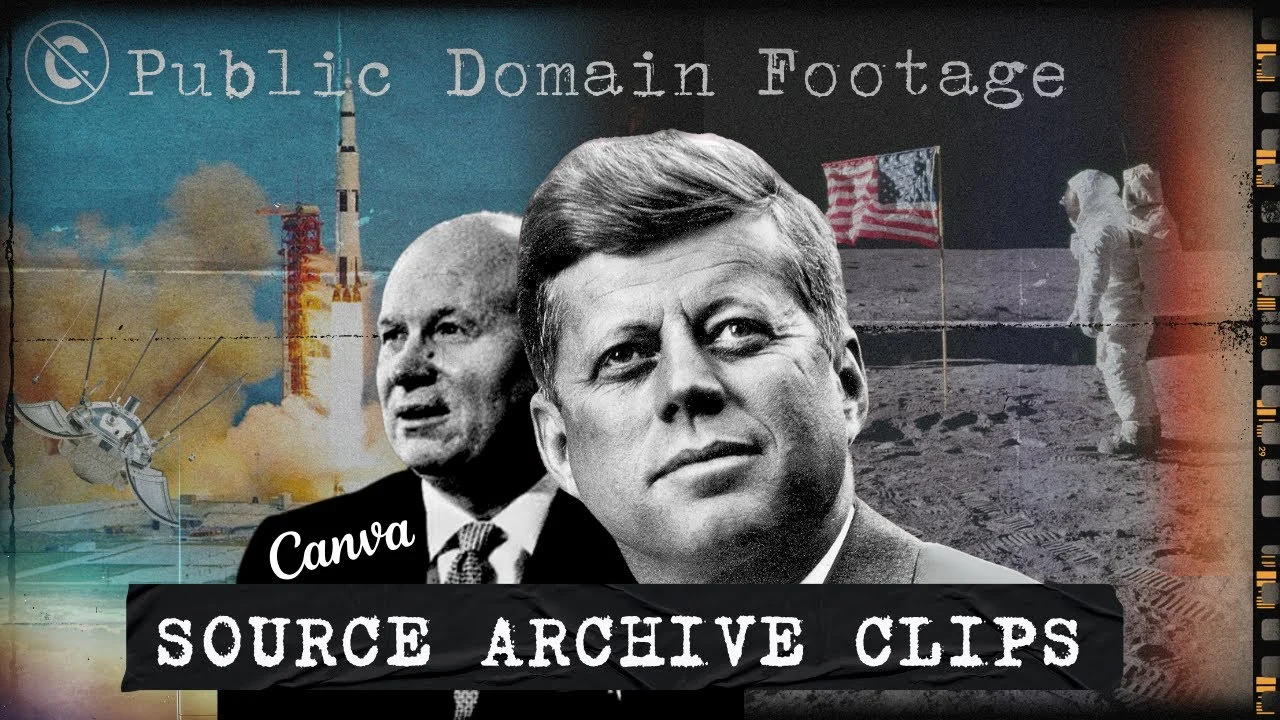 Editable Canva templateHistorical Documentary KitSkip the setup: this scene is in the Documentary Template Package, ready to edit.See the templates →
Questions
Is footage on Archive.org free to use on YouTube?
Only items marked as public domain (such as Public Domain Mark 1.0 or U.S. Government Work). Many uploads are still under copyright, so filter with licenseurl:*publicdomain* and keep proof of the licence.
Why won’t my Archive.org video upload to Canva?
It’s probably an OGV file. Convert it to MP4 (H.264) with VLC first.
Want to go deeper?
The Pixel Village opens in January with full courses on documentary editing: deeper lessons on every technique, practice projects and feedback on your own work. Join the waitlist and get a free Canva template straight away.


