

Vox-level editing in Canva
This is the long one: a complete Vox-style explainer built from scratch in Canva. You’ll design textured title cards, timelines, collages and a bar chart, then animate everything word by word to a voiceover, with spinning wheels, passing scenery and a magnifying-glass reveal.
Watch on YouTube · 36 min · 427K views
What you’ll learn
- Set a palette and type system before you design
- Add texture that only shows on your elements
- Seat a person inside a vehicle with Magic Grab and cropping
- Build and animate a bar chart race by hand
- Sync words to a voiceover one at a time
- Spin wheels and move scenery with custom animation paths
What you need
- Canva Pro
- A 16:9 video design
- A finished voiceover (record your own or use a voice tool)
Step by step
Set your palette and fonts
Pick a colour palette before you design. Mine is close to Vox’s, but make your own so your videos look like yours. Use a classic serif such as Georgia Pro as the main font.
Design the title card
Type the title in uppercase, tighten the line spacing and centre it. Add an organic scribble line under the word you want to emphasise.
Press L for a line, set the weight to 9 and the style to dashed, then Alt-drag copies to box in the title. Add a Hand drawn Ford car above and a hand drawn globe below, cropping the dashed lines to leave gaps around them.
Filter the elements tab to animations and add a Green Organic Grid to each corner.
Add texture that only touches your elements
Search Dust texture and set it to the same colour as the background. That way only the elements look textured, not the empty space.
Alt-drag copies until the canvas is covered, select them all with Shift and group them. Move anything that shouldn’t be textured above the group in the Layers panel.
Build the timeline scenes
Copy a dashed line to a new page and stretch it to full height, holding Shift so it stays aligned. Press C for a circle marker with a thick green border.
Add the year in Georgia Pro, a right-aligned title and a cut-out photo with the background removed. If two photos clash, lower the saturation in Adjust until they match.
Make collage scenes
Use an antique wood background with the saturation slightly reduced, a vintage polaroid frame for photos and a Film Texture Overlay Frame around archive footage from the video library.
Put a driver inside a vehicle
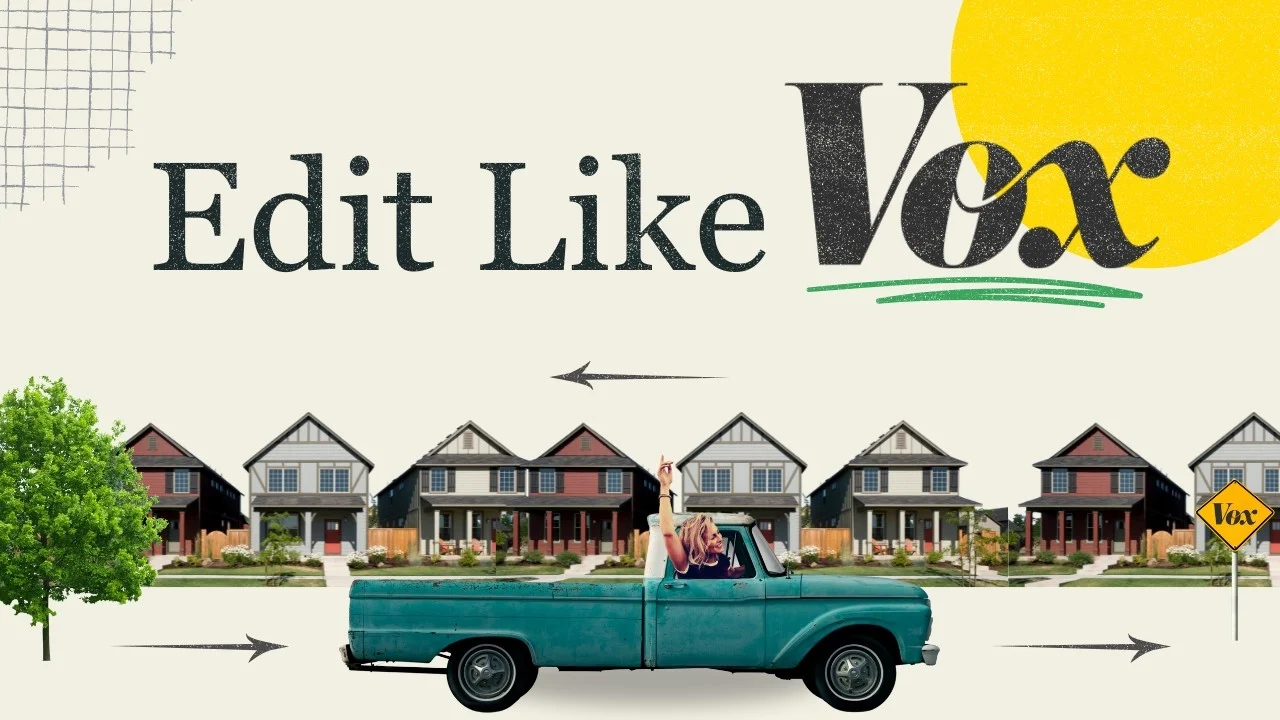
Remove the background from an Old Truck photo. Use Magic Grab to lift the person out of Woman driving a truck and size them into the driver’s seat.
Duplicate the truck on top and crop it from the top down so the person sits inside the cab. Add an X Pro Plus filter and a Circular Blur Shadow underneath.
Magic Grab won’t work on a flipped image. Export it as a transparent PNG, re-upload it and the tool works again.
Animate a bar chart by hand
Use L for the axes and grid lines (weight 1) and R for the bars. Add labels, a title and a year.
Duplicate the page for each year and change the bar heights. Add Match & Move transitions of 1.5s, set each page to 2s, and give the year a Typewriter animation with Both selected.
Sync the title to the voiceover word by word
Duplicate the title and cut each copy down to a single word, placed exactly over the original. Right-click, choose Show element timing and make each word appear as it’s spoken. Delete the base text layer.
Draw the timeline with lines and slides
Give the dashed lines a Wipe at the highest speed, each starting as the previous one finishes.
Copy the exit line onto a new page, stretch it to full height and set the page to 0.5s. Duplicate it with Ctrl+D and use Slide transitions at maximum duration for a seamless scrolling timeline.
Spin the wheels and move the scenery
Use Magic Grab with the brush sized to the wheel to cut out each wheel, then add a Rotate effect at the highest speed.
For passing trees and road signs, park them just off-screen, add a custom animation path dragged straight across while holding Shift, choose Steady and turn the speed up. Give the driver a bumpy up-and-down path.
Highlight the article and reveal with a magnifying glass
Layer a Colorful Highlight Marker over the key lines with a left-to-right Wipe, and pan between highlights with Match & Move.
For the reveal, make a black rectangle with a circular gradient that leaves a transparent hole, place a magnifying glass over it and group them. Draw a swirly custom path with a slow Steady movement, then enlarge it past the canvas with a 2s Match & Move.
Tips
- Design every scene first, then animate. Timing is far easier once the voiceover is on the timeline.
- Rough timing is fine until the sound design pass, where you’ll fine-tune everything.
- When two photos clash, lower the saturation until the colour casts disappear. It ties mismatched images together fast.
 Editable Canva templateVOX v2 EditSkip the setup: this scene is in the Documentary Template Package, ready to edit.See the templates →
Questions
How long is this tutorial?
About 36 minutes. It covers a complete explainer from blank canvas to finished animation, so it’s worth watching in sections.
Is there a sound design part?
Yes. Sound design for this style has its own tutorial on the channel.
Want to go deeper?
The Pixel Village opens in January with full courses on documentary editing: deeper lessons on every technique, practice projects and feedback on your own work. Join the waitlist and get a free Canva template straight away.


